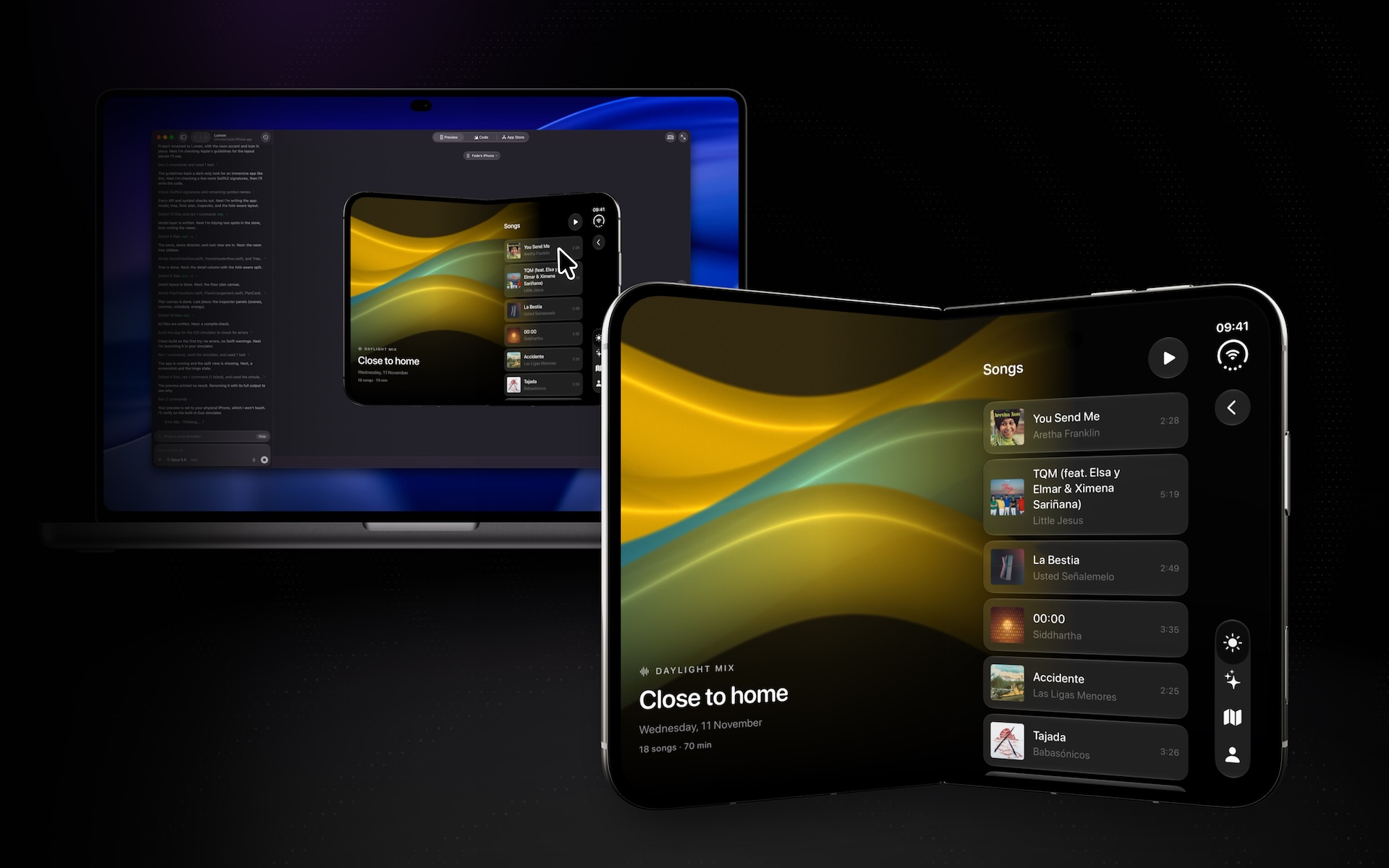
Your connected devices are now available in the Preview tab, with all the productivity boosts and creature comforts of the Bitrig simulator.
A connected iPhone Duo, unfolded, playing a music app, with the same screen streamed into the Preview tab on the MacBook Pro behind it as the cursor points at a song
v0.33.0 | Download Bitrig

Hello Bitrigger,

At Apple, I almost never tested my work in the simulator. Some of the frameworks and technologies I needed weren’t available there. And I wanted to see how my changes looked with my real data, and how they felt on a real device.

At Bitrig it’s the opposite. Simulator Use and Select to Edit are so powerful, and Auto-Run and Add Screenshot so convenient, that I often don’t install the app on my iPhone until the feature is done.

But sometimes I still need to test on a real device, and it’s tough to give up the productivity boosts and creature comforts of the Bitrig simulator.

Today, that changes:

Bitrig now streams your connected devices into the Preview tab, right alongside your simulators.
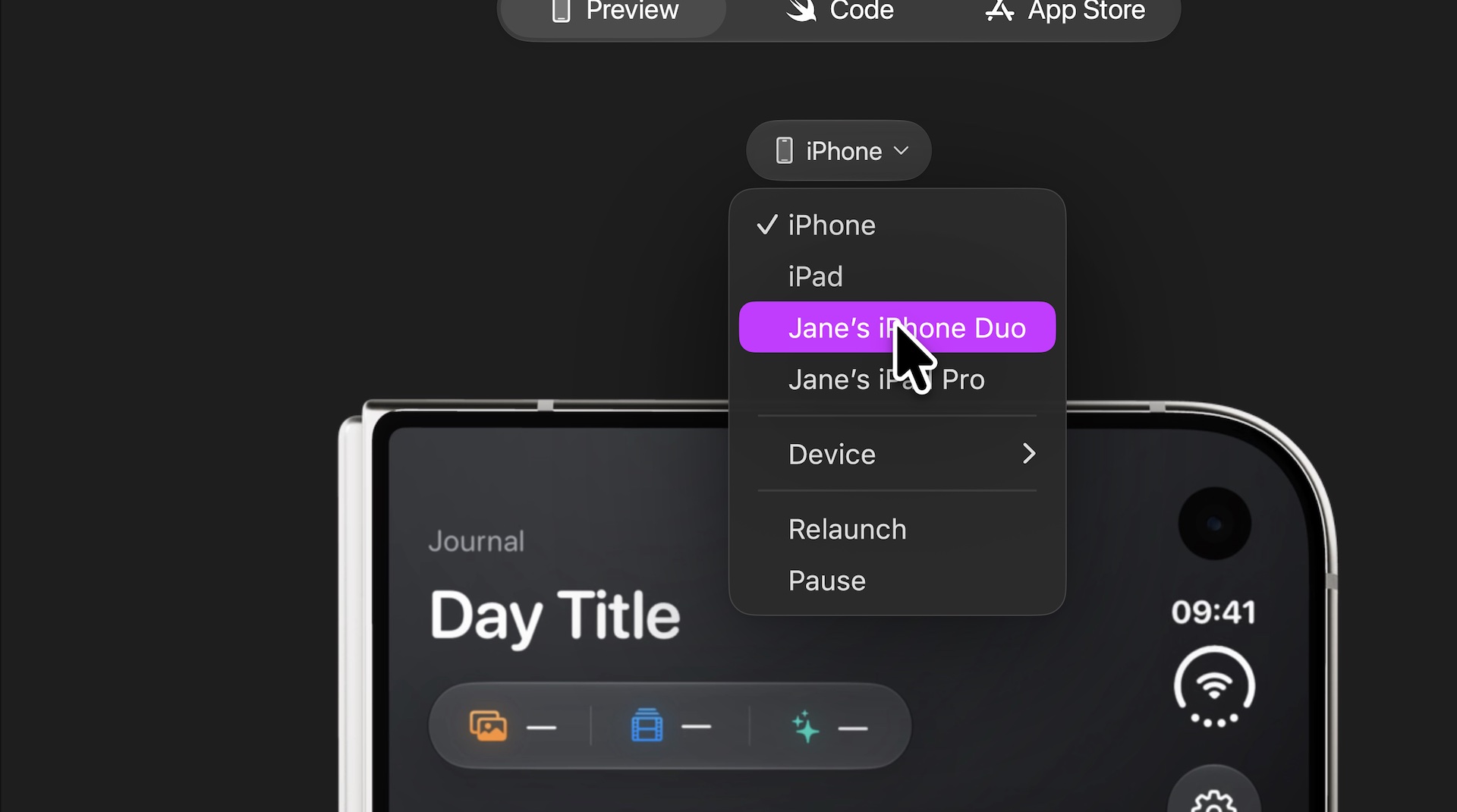
The Preview tab’s device picker listing the iPhone and iPad simulators alongside Jane’s iPhone Duo and Jane’s iPad Pro

You can:

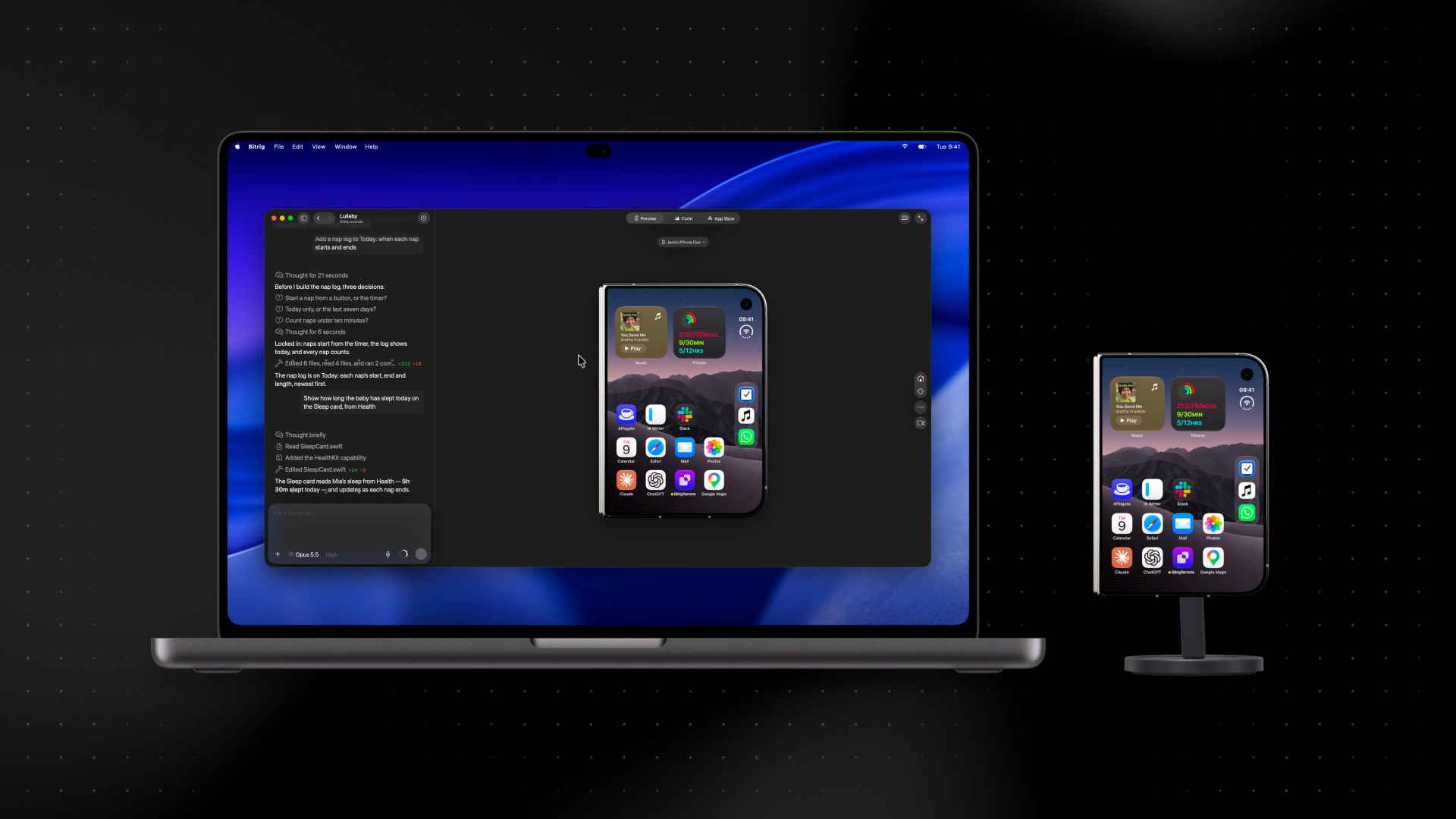
  • Interact with your phone from your Mac. Click, scroll, and type in your app, streamed live at 60 fps, right in the Preview tab. On the new touchscreen MacBook Pro, you can use multi-touch gestures directly.
Bitrig on a MacBook Pro streaming a connected iPhone Duo into the Preview tab, beside the real phone on a stand showing the same Home Screen
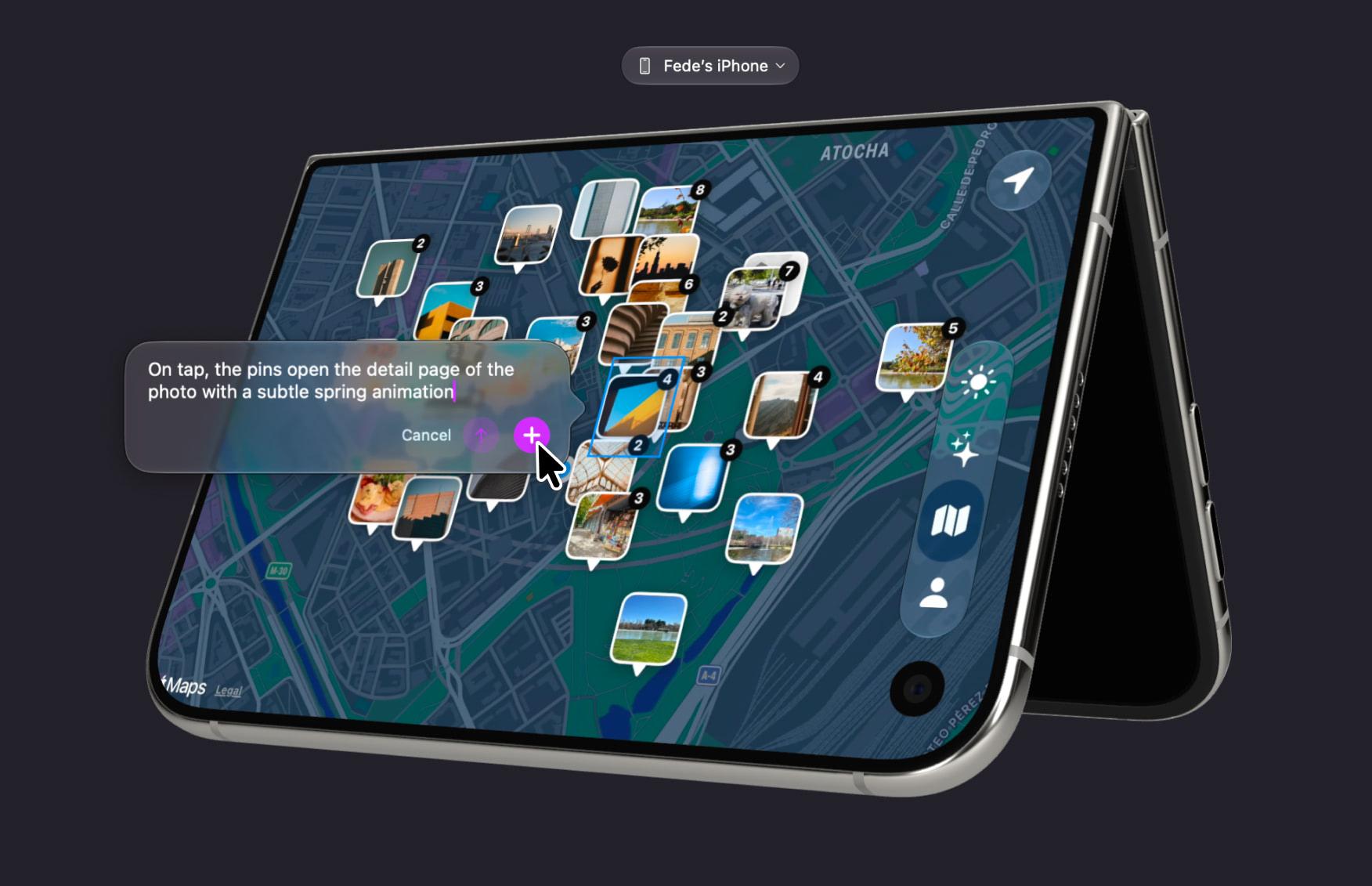
  • Use your favorite simulator tools. Select to Edit and Add Screenshot let you point Bitrig at exactly what to change. And easily switch Dark Mode, text size, and other device settings.
Select to Edit on a connected iPhone Duo: a photo pin on a map is selected, with a prompt asking for a spring animation when it’s tapped
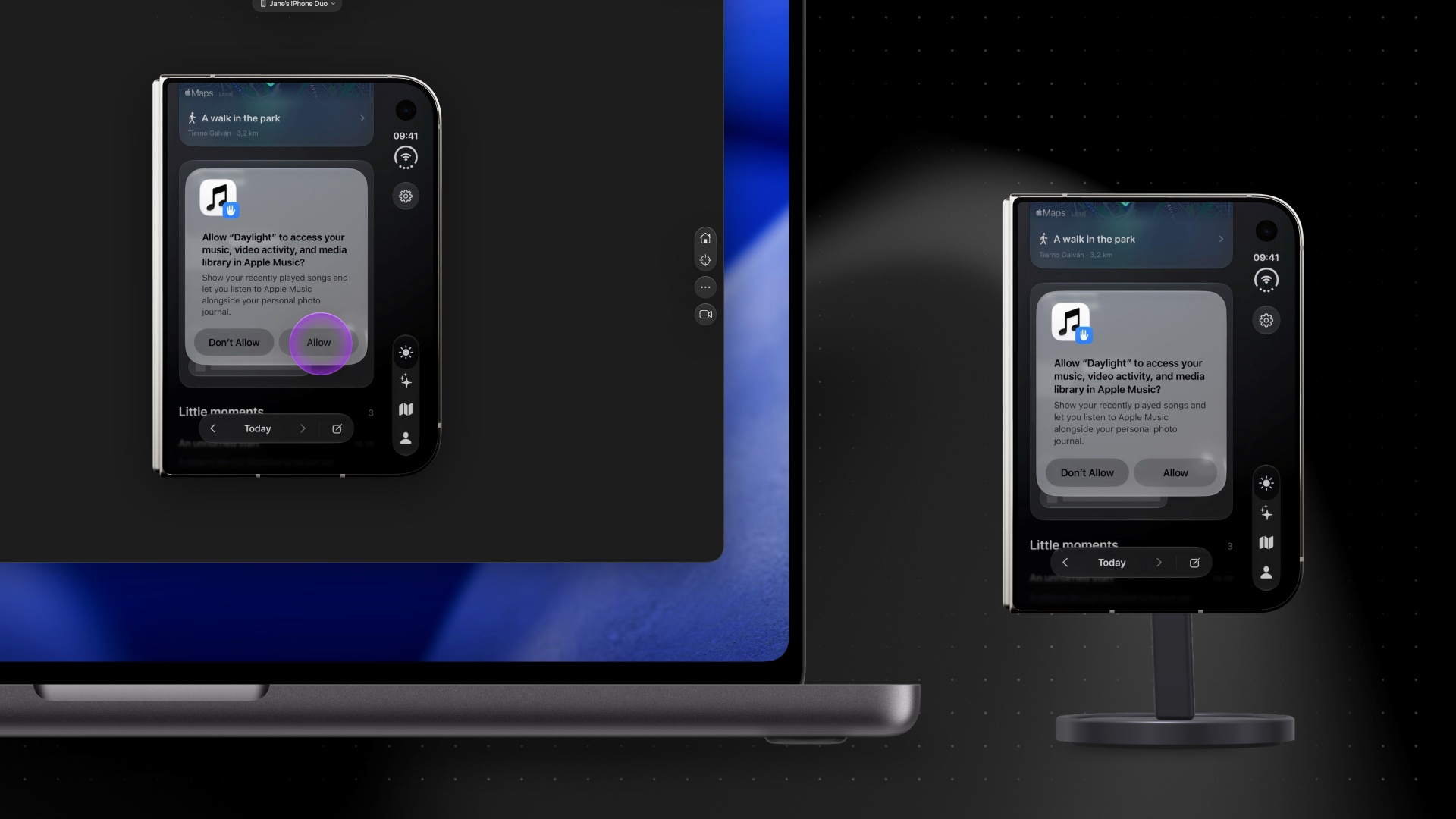
  • Let Bitrig check its work. Bitrig now taps through your app on device just like it does in the simulator, reading the screen and logs, so it can test features that need real hardware, like the new Siri AI developer preview.
Bitrig tapping Allow on a permission prompt in the Preview tab, with a touch indicator, while the real iPhone Duo beside the Mac shows the same screen
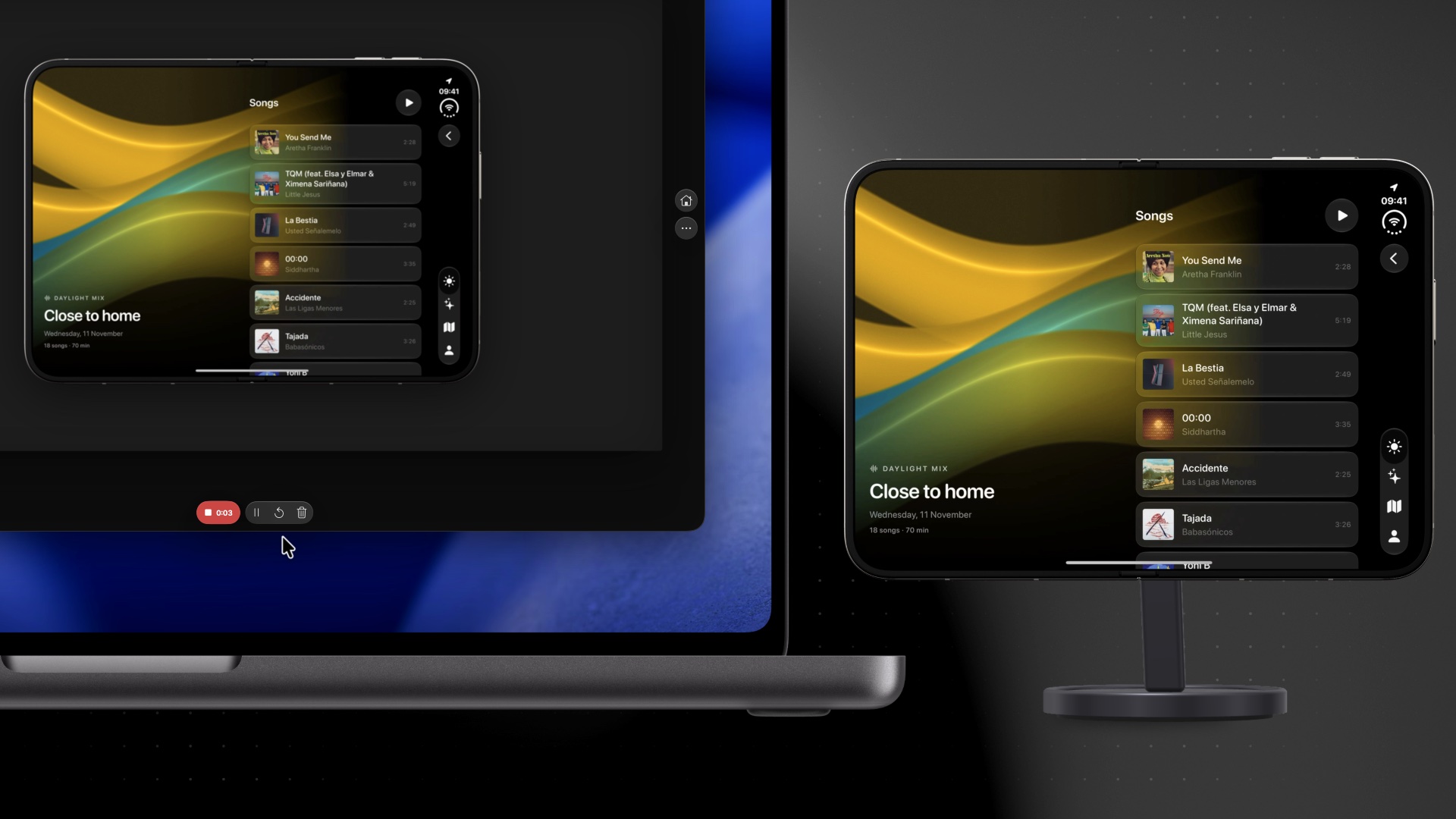
  • Record it in 3D. Record a demo of your app running on your real device, in the same 3D frame as the simulator. Rotate your phone or fold and unfold iPhone Duo, and the 3D device in the Preview tab follows along as you record.
Recording a connected iPhone Duo held in landscape: the 3D device in the Preview tab is turned to match, with the recording controls running below it

Getting started is simple. Plug in your iPhone or iPad, and Bitrig pairs with it and walks you through turning on Developer Mode. Apple Watch and Apple TV will need to be paired in Xcode first.

Once it’s paired, you can unplug your device and it stays connected to your Mac over Wi-Fi. You can even pick it from Bitrig Remote when you’re away from home. Testing on your device also spares your Mac’s CPU and memory, since there’s no simulator to run.
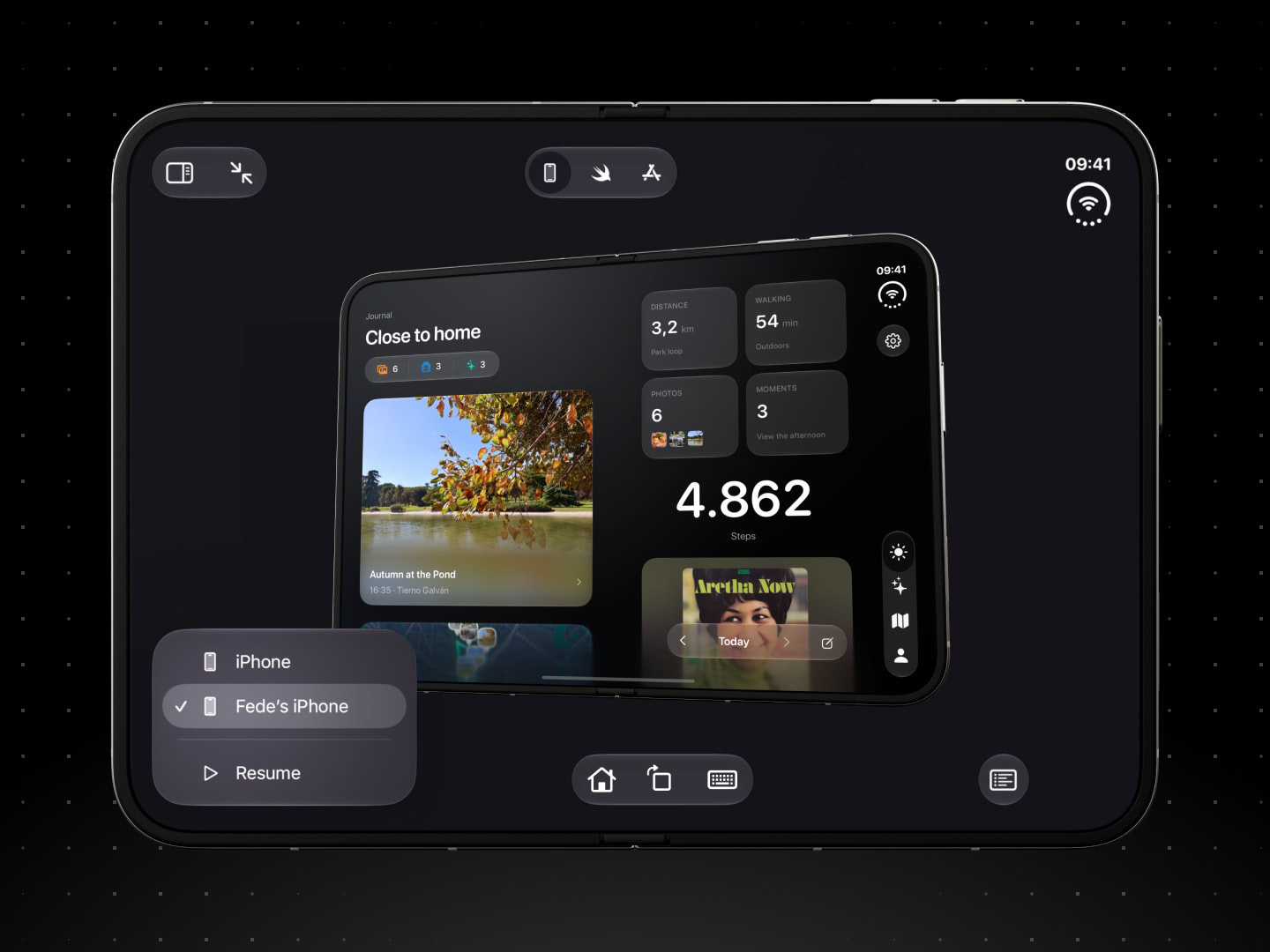
Bitrig Remote on iPad showing a connected iPhone, picked from the device menu, running a journal app

Bitrig works in any app on your phone, not just yours. Point at a design you like with Select to Edit, and Bitrig can study its screenshot and layout for inspiration. You can even ask it to order your dinner on DoorDash.

So the next time you’re torn between the convenience of the simulator and the fidelity of a real device, don’t be. Pick your iPhone in the Preview tab, and get the best of both.

Cheers,
Kyle
CEO, Bitrig


The Bitrig logo Bitrig, Inc.
785 Castro Street, Suite A
Mountain View, CA 94041
Unsubscribe