Hi [First name] [First name]!
Welcome to Visily! To ensure your success, here are the most important tips for getting started:
#1. Install the Visily extension for best screenshot conversions: Converting app screenshots into editable designs is one of the most popular ways people start designing in Visily. Using the Visily extension to take screenshots and send them directly to a Visily board for conversion is not just convenient— it also results in the highest quality outputs . If you haven't tried it, you can install it here .
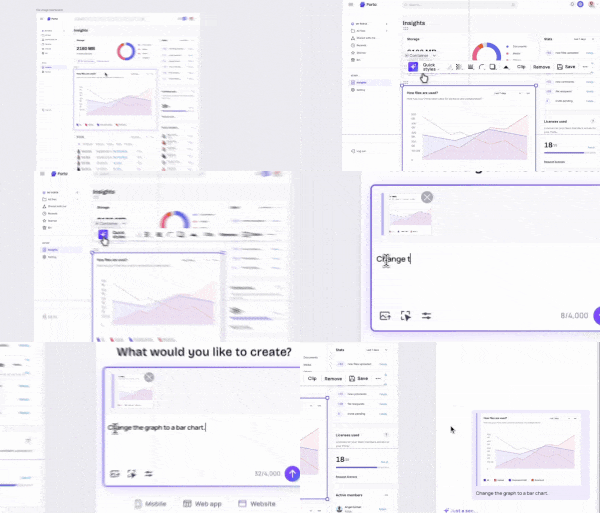
#2. Select or reference the assets you want to modify with AI: While you can describe the screens, components, or images you want to edit, directly selecting them will yield superior results. Doing this is easy:
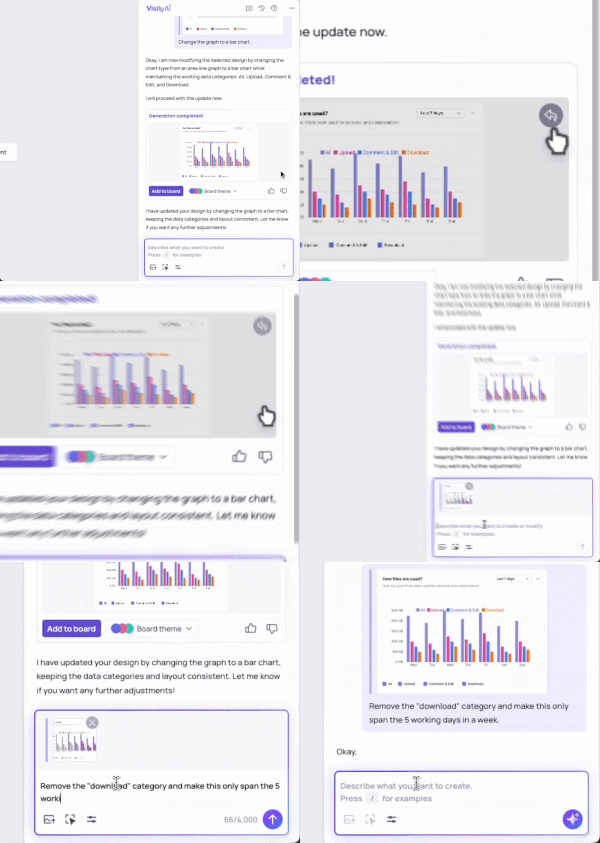
If the object you want to modify is in the chat (recommended for best results), click the "reference" button on it, and then describe the modification: