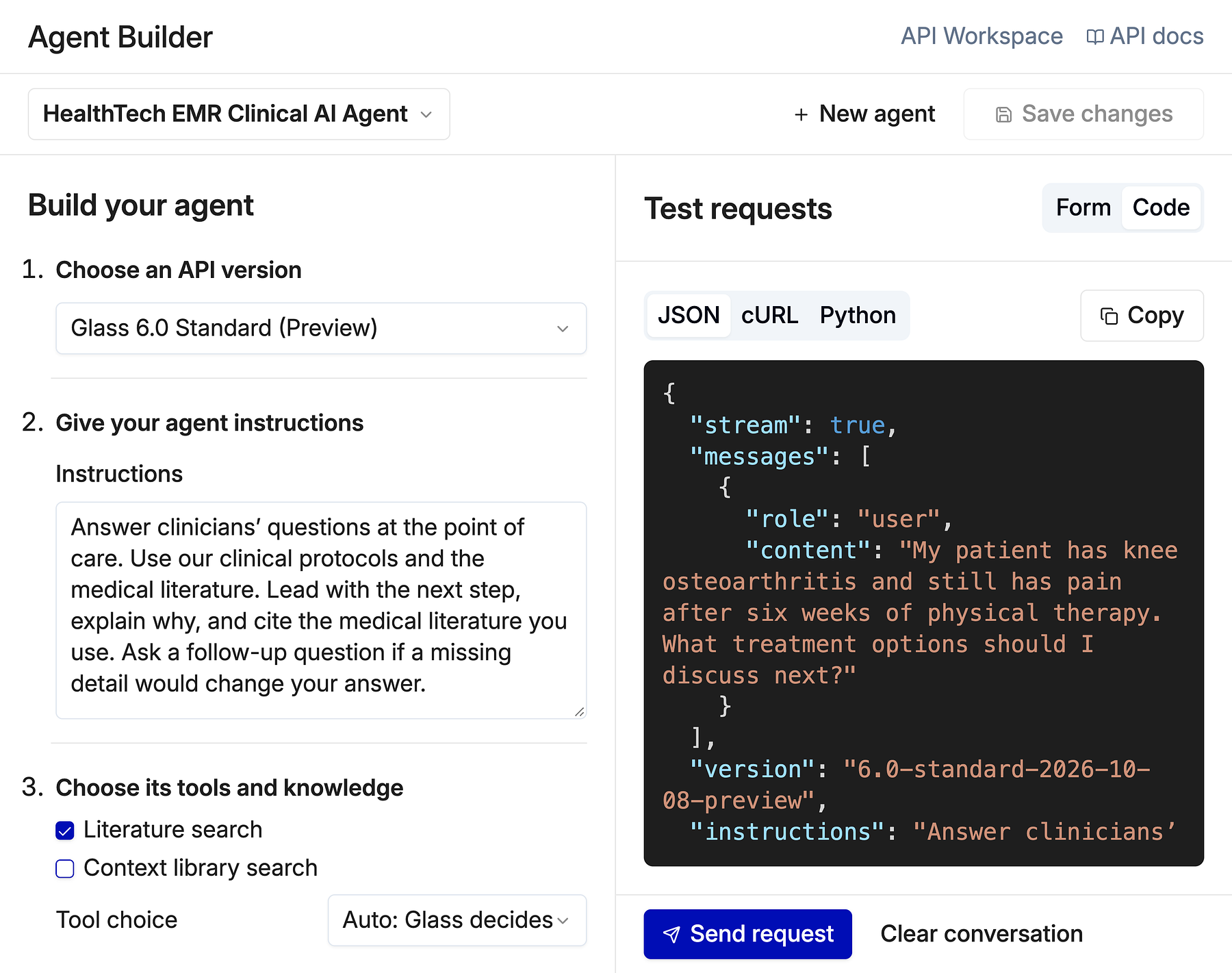
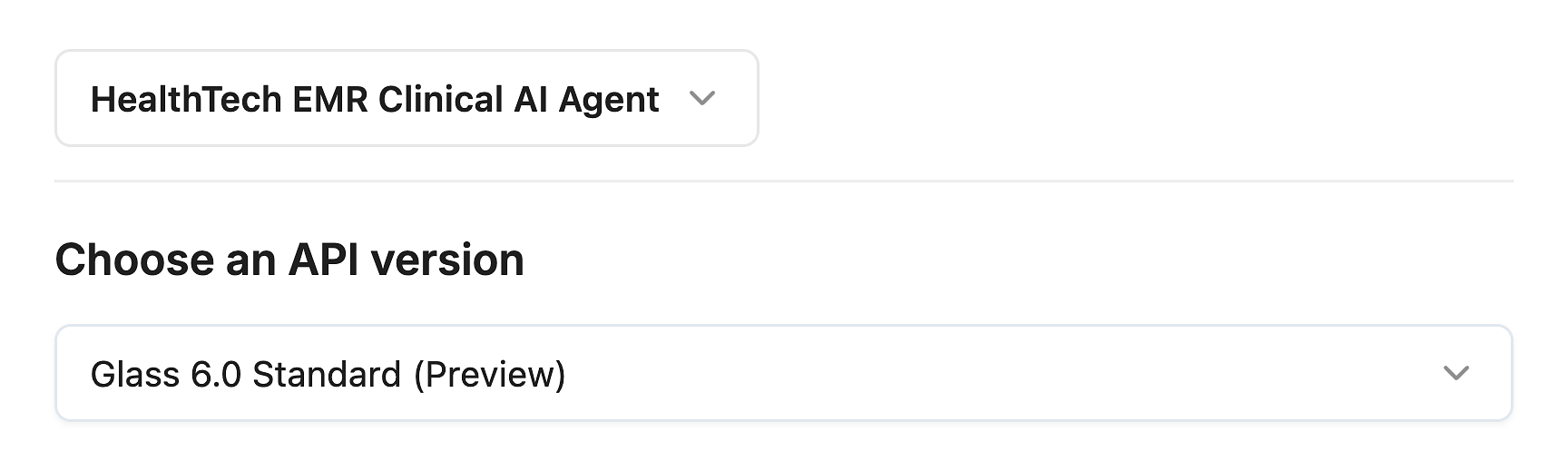
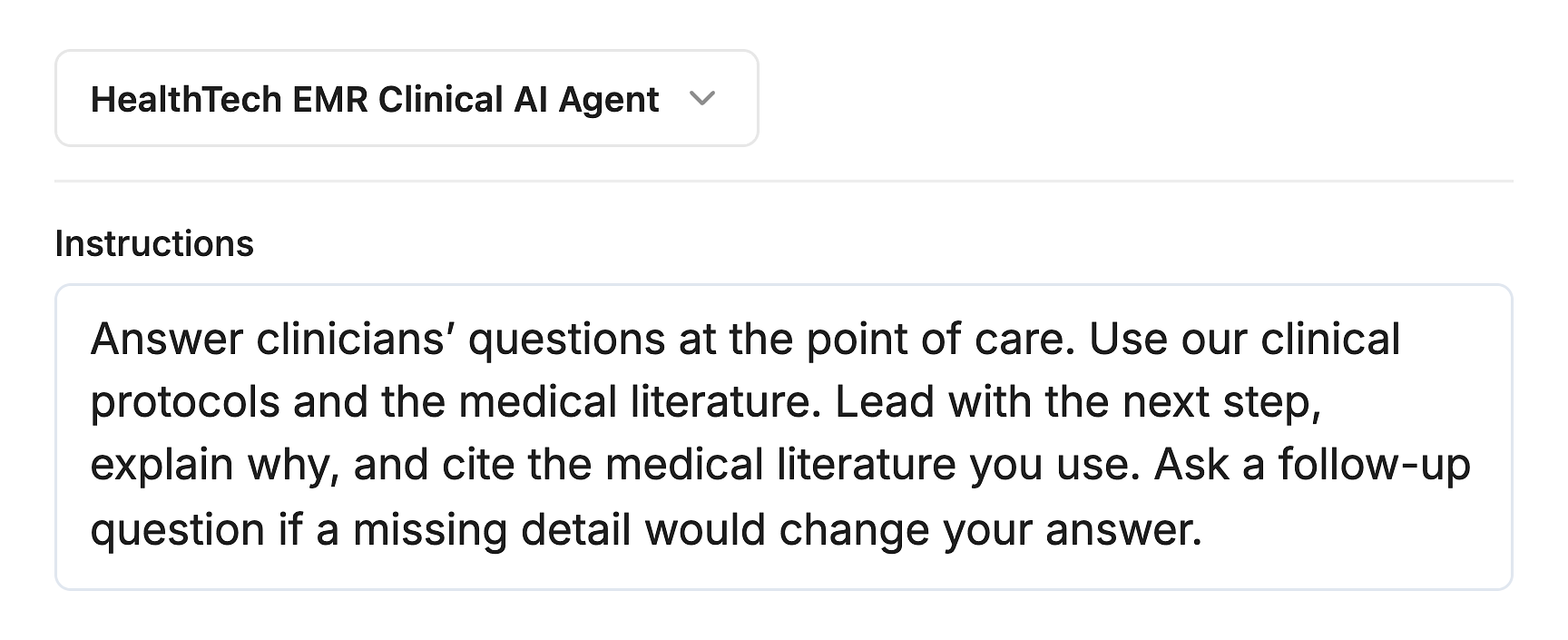
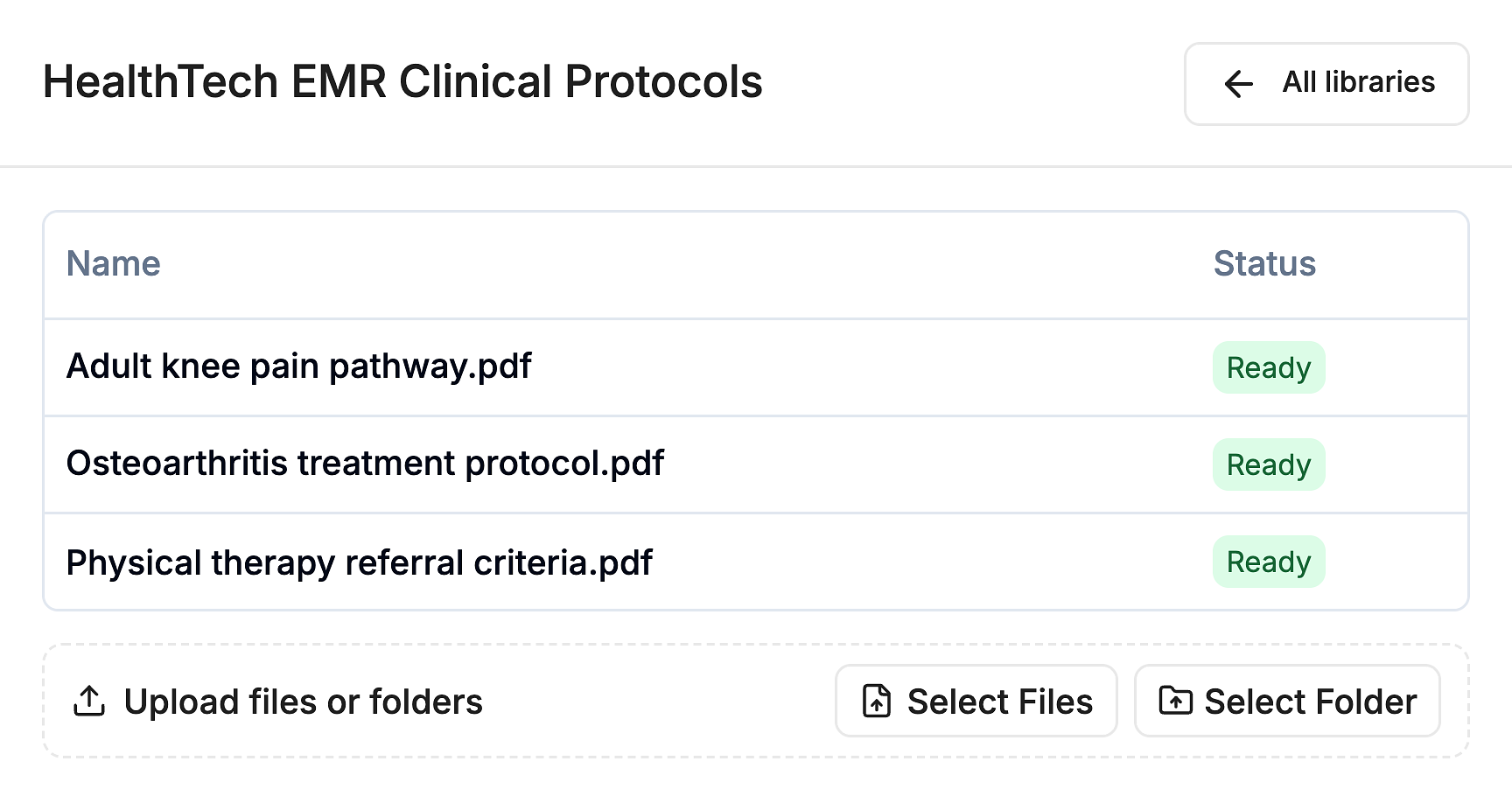
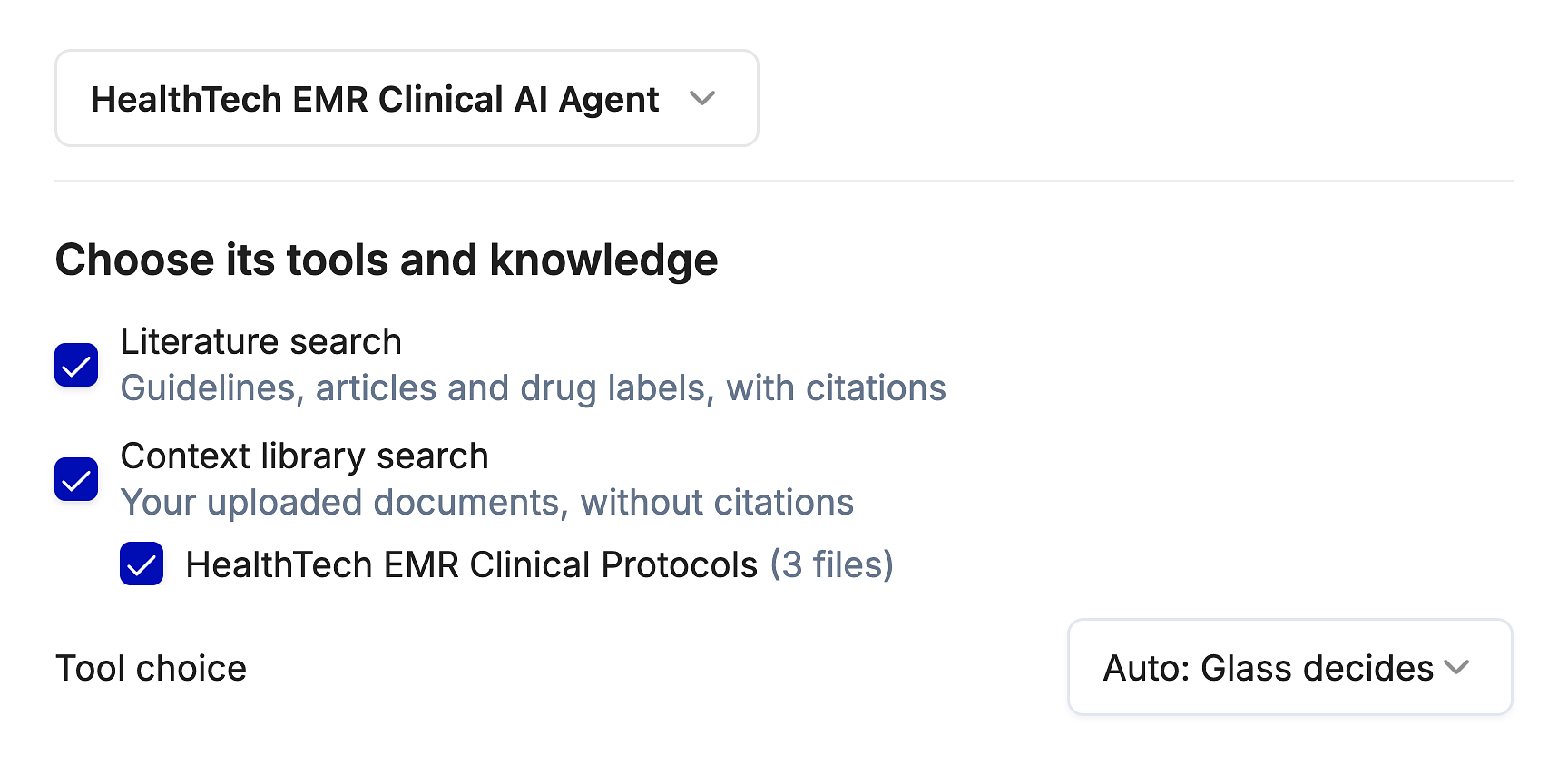
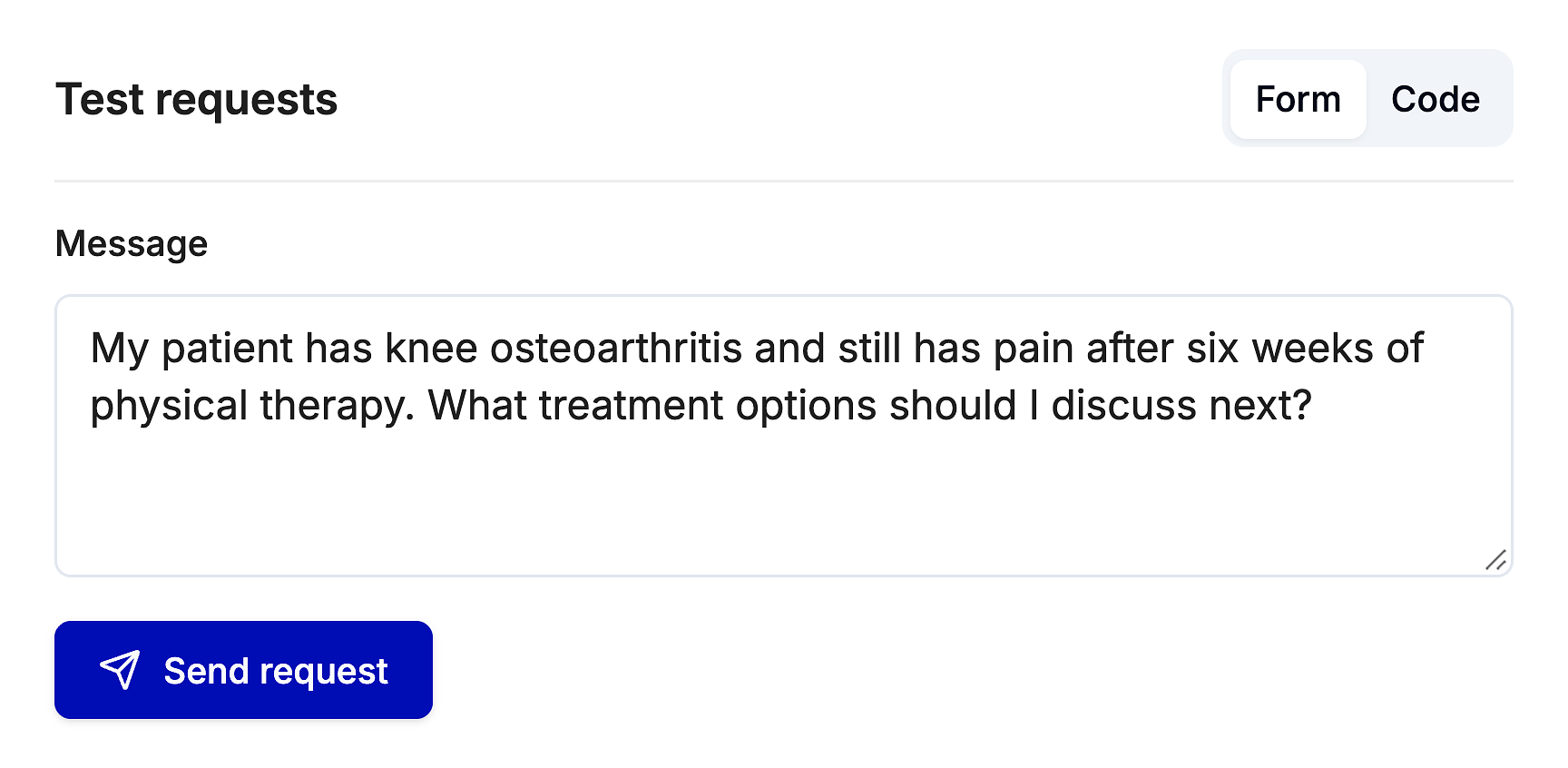
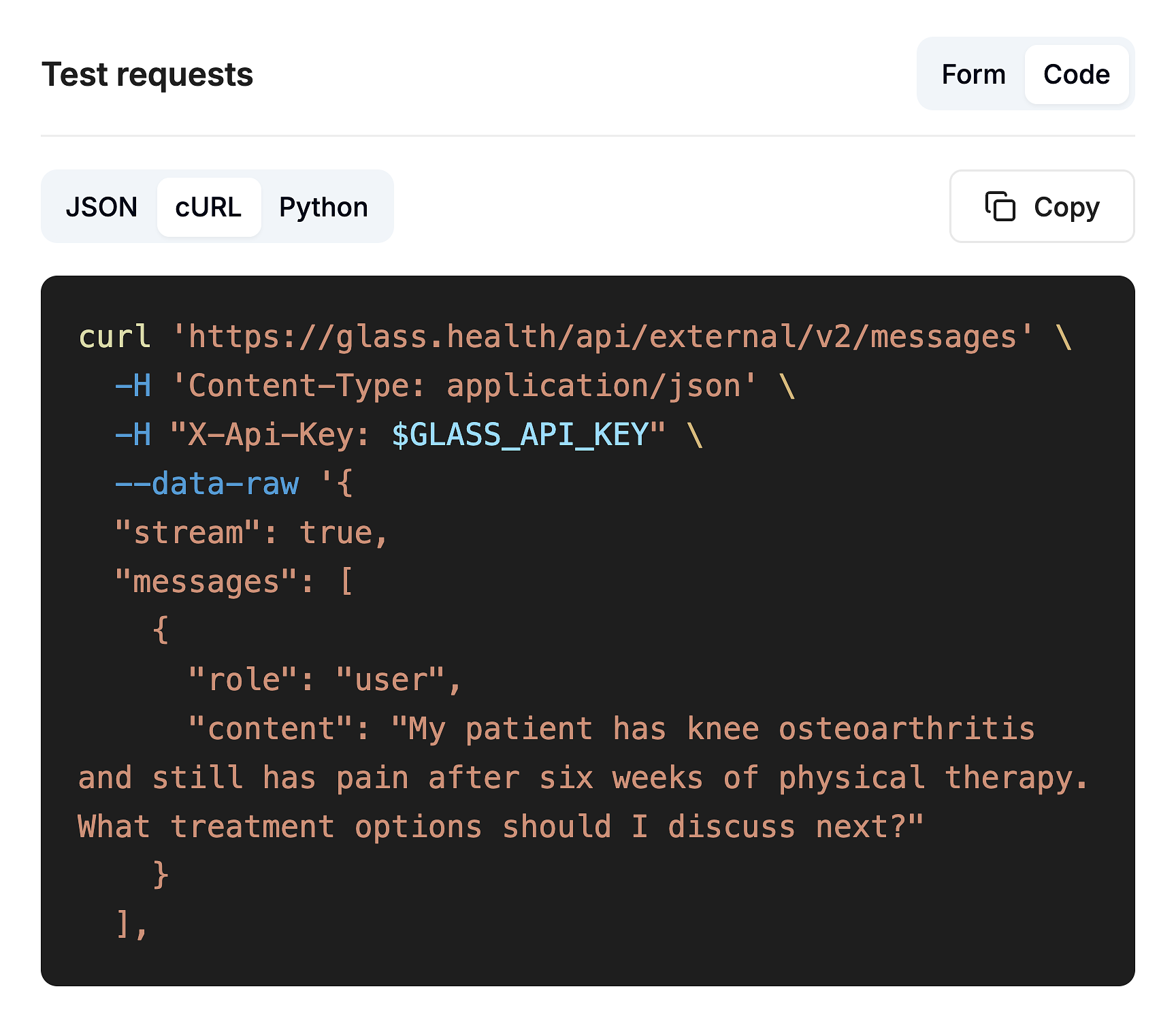
Hi, Today we’re introducing the Glass for Developers app with two new features, Agent Builder and Context Libraries, alongside new Glass 6.0 API endpoints. Agent Builder: Build and test your clinical AI agent by giving it instructions and choosing its tools. Context Libraries: Upload your clinical protocols and knowledge so your agent can search them alongside the medical literature. Glass 6.0 API endpoints: Bring Glass’s frontier clinical intelligence into your own product or platform. | | | | Build Your Clinical AI Agent1. Choose an API endpointOpen Agent Builder, select your workspace API key, and choose an available Glass 6.0 preview endpoint. Select Name and save agent… to name your agent. This saves its setup in your browser. 2. Give your agent instructionsIn Instructions, define your agent’s audience, sources, and response style. The example below asks for clear next steps, reasoning, literature citations, and follow-up questions when details are missing. Select Save changes. 3. Build your Context LibraryWorkspace admins and owners with paid API access can upload documents. In Context Libraries, select Create library and name it. Open it, choose Select Files, and upload your protocols and reference documents. Wait for every file to show Ready. 4. Enable tools and connect your Context LibraryOpen your saved agent. Enable Context library search and select your library. Turn on Literature search to include medical evidence, then select Save changes. 5. Test and Demo your AgentIn Test requests, open Form, enter a clinician’s question in Message, and select Send request. Review the answer and literature citations. Then select Preview chat to demo your agent in a dedicated chat interface. Ask follow-up questions to see how it responds using your instructions, enabled tools, and selected Context Library. 6. Integrate into your platformIn Test requests, open Code, choose cURL or Python, and select Copy. Use the request in your server-side integration, keep your API key on the server, and replace the sample message with input from your platform. | | | | |
|
|
|