|
|
|
|
|
We've been adding more ways to help you find information, simplify everyday tasks, and give your team greater control over how they work in ProhostAI.
|
|
|
|
This release brings faster workspace search, a dedicated home for reusable task checklist templates, and new ways to manage team chat and email preferences. We've also introduced decision cards for AI Employees and improvements to how AI Phone routes calls to your team.
|
|
|
|
Here's what's new and how to make the most of these updates.
|
|
|
🤖 Give AI Employees Input with Decision Cards
|
|
When an AI Employee needs your input before proceeding, it can now present a structured decision card with a clear question, available options, and a recommended choice.
|
|
|
|
Instead of having to work out what the AI needs from a long conversation, you can review the options and respond directly. If the AI proposes an action, you'll also have an opportunity to confirm it before it runs.
|
|
|
|
Where to find it: No setup is required. When the feature is enabled for your account, a decision card appears in the relevant team chat thread when an AI Employee needs a decision.
|
|
|
|
Each card includes two to four options, with one marked
|
|
Recommended.
|
|
|
-
Select Choose on an option to respond.
|
-
Select Something else… to provide your own instruction.
|
-
If your selection triggers an action, review the Run this action? confirmation before proceeding.
|
|
|
|
If the original conversation thread isn't available, the card is sent to a direct message with the AI Employee's approvers, or the owner and admins.
|
|
|
|
Unanswered cards expire after 72 hours by default. They appear in team chat rather than the Needs You section, so you'll receive the usual team chat notification.
|
|
|
|
|
🔎 Find Reservations, Cleanings, and Documents Instantly
|
|
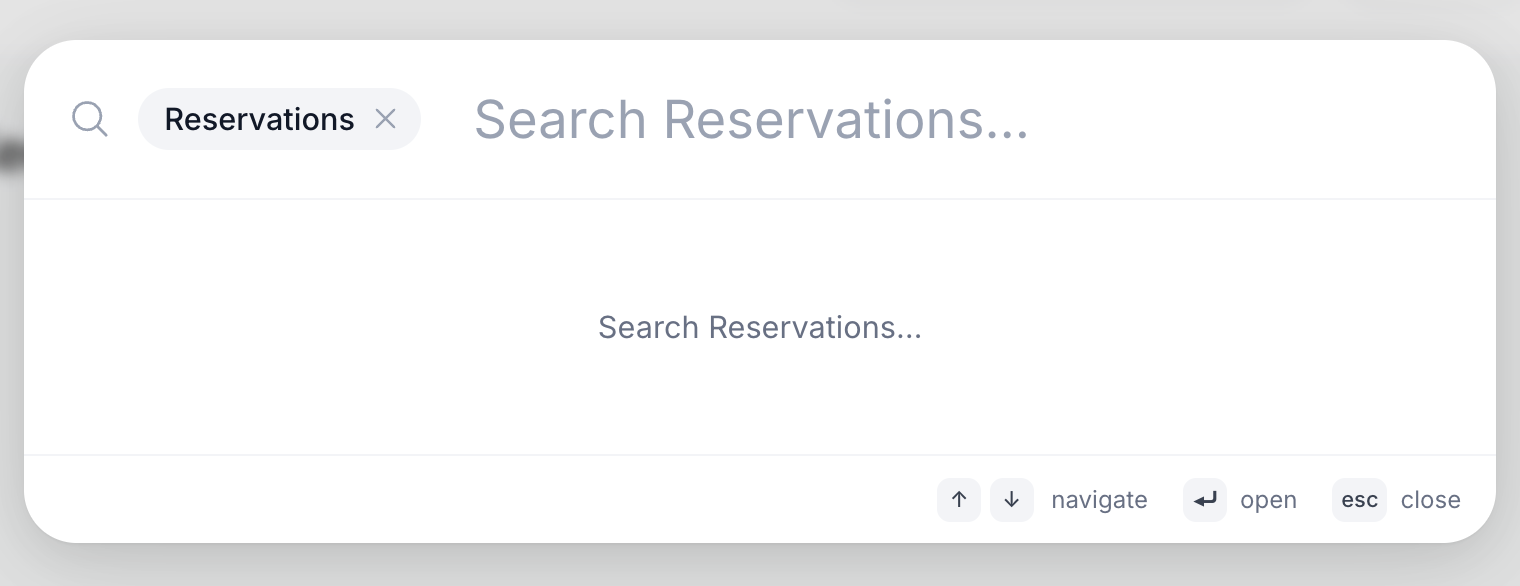
Finding the right information is now easier with an upgraded workspace search. Instead of navigating between different sections, you can search across reservations, guest details, cleanings, Drive documents, reviews, AI Workflows, and more from one place.
|
|
|
|
You can also narrow your search by information type, helping you get to the right result with fewer steps.
|
|
|
|
Where to find it: Press ⌘K on Mac or Ctrl+K on Windows, or select Search in the top bar. On smaller screens, look for the magnifying glass icon.
|
|
|
|
Type at least two characters to see results, then use the arrow keys to navigate and press Enter to open a result.
|
|
|
|
Search tips: Use a type prefix followed by a colon to narrow your results. For example:
|
-
res: to search reservations
|
|
|
-
clean: to search cleanings
|
|
|
-
review: to search reviews
|
-
wf: to search AI Workflows
|
|
|
-
vendor: to search vendors
|
|
|
|
Select the filter chip's ✕ to remove it, or press Backspace when the search box is empty.
|
|
|
|
Search is available to all signed-in users on web, with no additional setup required. On Drive pages, ⌘K searches Drive files specifically.
|
|
|
|
|
|
|
📋 Manage Checklist Templates from Tasks
|
|
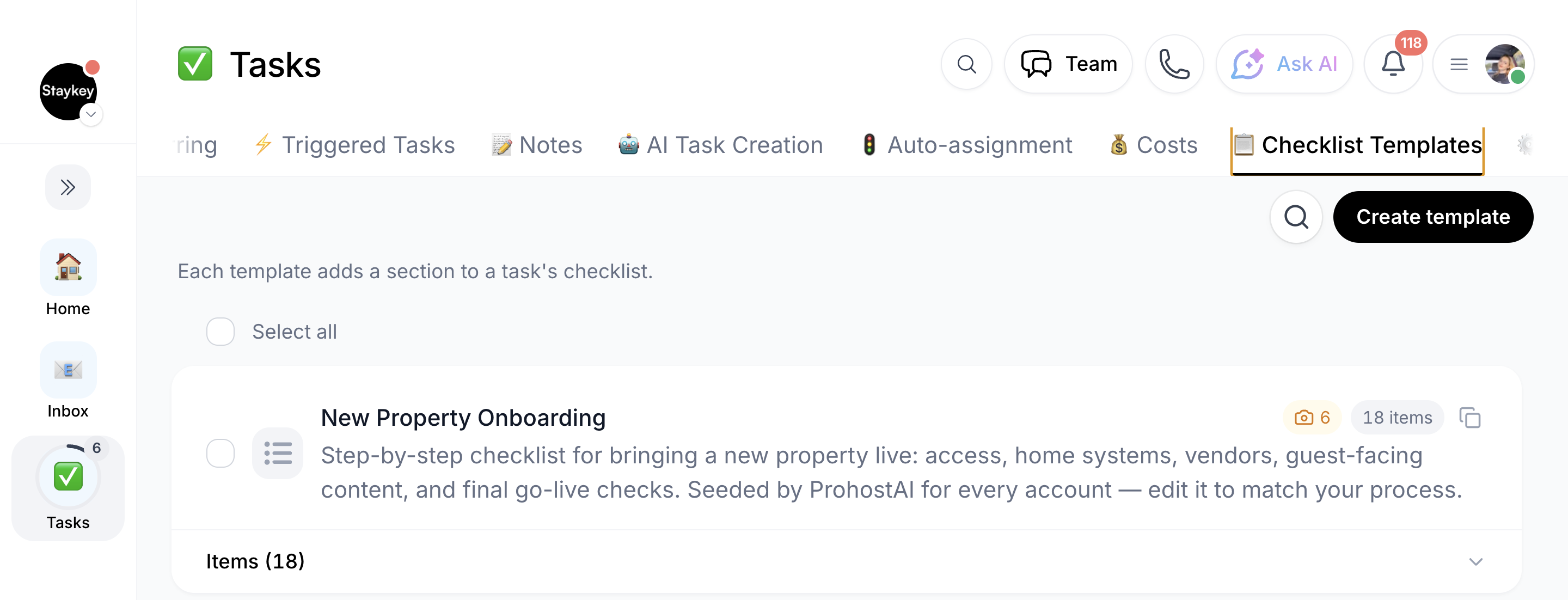
Reusable checklists make it easier to keep recurring work consistent across your properties. You can now manage your task checklist templates from a dedicated tab in Tasks, making them easier to create, update, and reuse.
|
|
|
|
Create templates with your own titles and checklist items, reorder items as your processes change, and specify when a checklist item requires a photo. You can also turn an existing checklist section into a reusable template or ask AI to help create, edit, and apply templates.
|
|
|
|
Where to find it: Tasks → Checklist Templates. The tab sits next to Settings.
|
|
|
|
To create a template:
|
|
|
-
Add a title and checklist items.
|
-
Enable Require photo for any item that needs photographic evidence.
|
|
|
|
To edit a template: Update its title or description directly on the card. Select Items to add, remove, or reorder checklist items, then select Save.
|
|
|
|
To use a template on a task:
|
-
New task: In the Checklist section, select a Start from: template chip.
|
-
Existing task: Open the checklist's options menu and select From template.
|
-
Recurring or triggered tasks: Use the Checklist Templates picker to apply a template automatically.
|
|
|
|
You can also select existing checklist sections and choose Save as template to reuse them later.
|
|
|
|
|
|
|
📞 Smarter Call Routing with Live Handoff
|
|
Live Handoff has been improved to make connecting callers with your team more reliable. The system now skips teammates without a registered device and continues ringing available teammates while the caller remains connected to the receptionist.
|
|
|
|
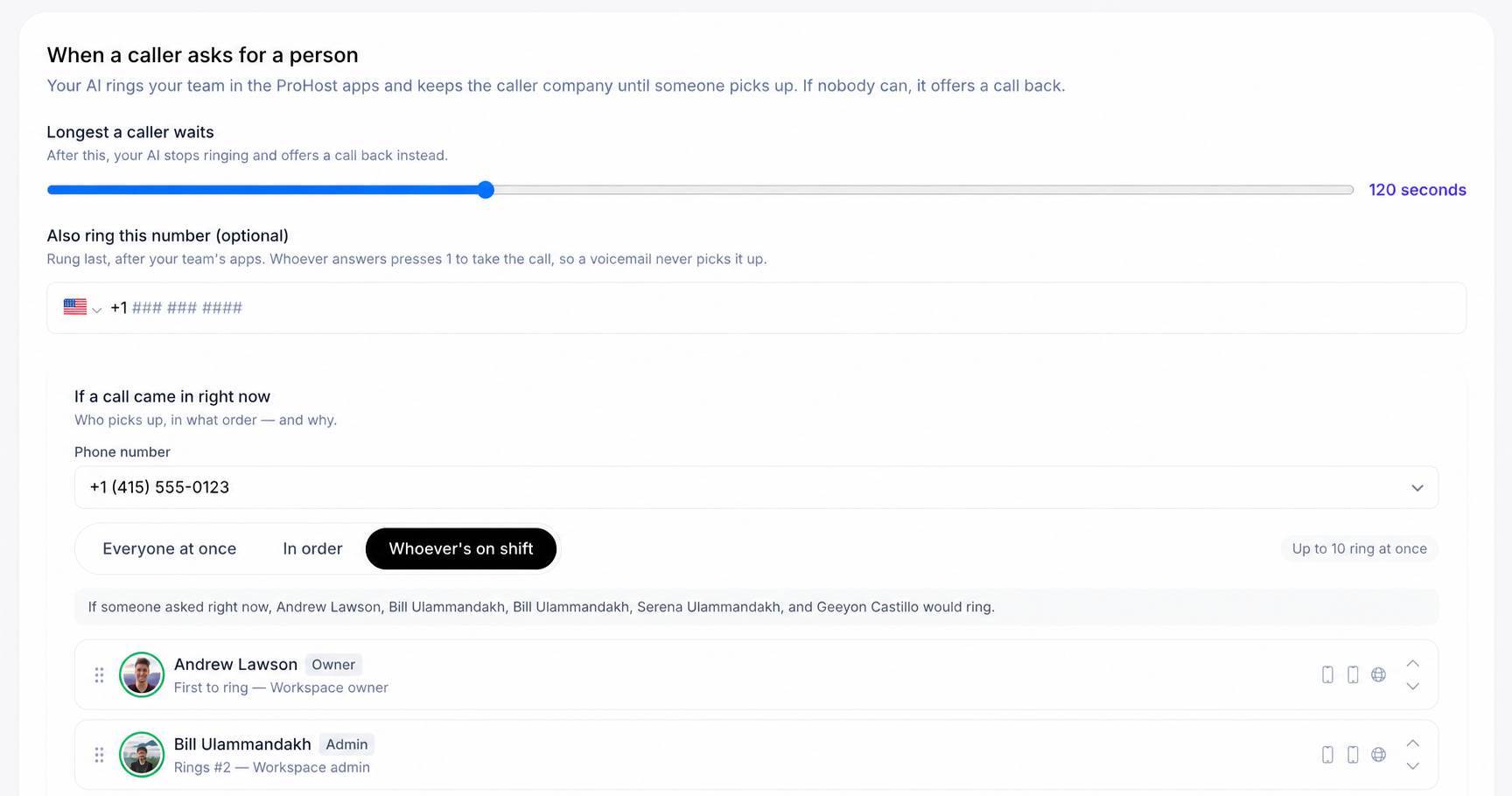
You can configure how long callers wait, whether an additional number should ring, and how calls are distributed across your team.
|
|
|
|
Where to find it: AI Phone → Settings → When a caller asks for a person.
|
|
|
|
From there, configure:
|
|
|
-
Longest a caller waits: Choose between 30 and 300 seconds. The default is 120 seconds.
|
-
Also ring this number: Optionally add another number to ring.
|
-
Ring order: Choose Everyone at once, In order, or Whoever's on shift.
|
|
|
|
To check who can receive calls, select Check my ring. Teammates without an eligible registered device are skipped and marked as unable to be rung in the ring order.
|
|
|
|
A registered device means a supported ProhostAI app or web app session, not simply a phone number listed on a teammate's profile. Eligible devices include an iPhone with the ProhostAI app signed in and calls allowed, a signed-in Android app, or a web app used recently.
|
|
|
|
Each ringing wave lasts 30 seconds and repeats until the configured wait time expires. If nobody answers, the AI receptionist can offer the caller a callback or take a message.
|
|
|
|
|
|
|
💬 Archive Team Chat Channels to Keep Things Organized
|
|
Keep your channel list focused on active conversations by archiving channels that are no longer needed for day-to-day collaboration.
|
|
|
|
Archived channels become read-only, but their message history remains searchable. You can restore a channel whenever you need to revisit it or resume the conversation.
|
|
|
|
Where to find it: Inbox → Team → Channels.
|
|
To archive a channel:
|
|
|
-
Select the ••• menu, or open Details.
|
|
|
|
|
|
|
|
Archived channels appear under Archived · N at the bottom of the Channels list. You can also find them through Browse channels → Archived.
|
|
|
|
To restore a channel: Open the archived channel and select Restore, or use ••• → Restore channel.
|
|
|
|
Only the channel creator, workspace owner, or an admin can archive or restore channels. The General channel cannot be archived.
|
|
|
|
This feature is available on web and requires no additional setup.
|
|
|
✉️ Customize the “Sent with ProhostAI” Email Footer
|
|
You can now control whether outbound emails include the Sent with ProhostAI footer, giving your workspace more flexibility over how its messages appear to recipients.
|
|
|
|
Workspace admins can choose whether the footer appears on the first email in a conversation or every email. You can also configure whether the footer indicates when an AI teammate wrote the email.
|
|
|
|
Where to find it: Settings → Workspace → Email signature.
|
|
To configure the footer:
|
-
Open the Email signature settings.
|
-
Enable the Sent with ProhostAI toggle.
|
-
Under Show it on, choose First email in a thread or Every email.
|
-
Configure the option indicating when an AI teammate wrote the email, if desired.
|
|
|
|
The footer is off by default.
|
|
You can also remove the footer from an individual message without changing workspace settings. In the Gmail or direct-email composer, hover over the faint footer line and select Remove.
|
|
|
|
The footer applies to supported outbound emails, not Airbnb, Vrbo, or Booking.com relay emails, or internal notes.
|
|
|
|
The footer can also support referrals: when someone signs up through its link, both workspaces receive a $50 credit.
|
|
|
💬 Need Help Getting Started?
|
|
Want help setting up these features or finding the best way to use them with your team's workflows? We're here to help.
|
|
|
|
Book a call with our team and we'll help you get set up and answer your questions. Calls are free and unlimited.
|
|
|
|
|
|
|
|
🚀 More ways to make ProhostAI work for your team
|
|
|
|
We're continuing to improve ProhostAI so you can spend less time searching, organizing, and managing routine processes, and more time focusing on your properties and guests.
|
|
|
|
We'll keep sharing new improvements as they become available.
|
|
In the meantime, if there's a feature you'd like to see or something we could make easier, we'd love to hear from you.
|
|
|
|
Some features are being rolled out gradually and may not yet be available on every account. Please let us know if you are missing a feature and we will enable it for you.
|
|
|
|
|
|
|